
Mocap from a phone video – how to film it and turn it into 3D animation
You do not need a mocap suit: a phone video is enough. Film the move well, drop it into KinemIQ and AI motion capture turns it into a 3D character animation in your browser – free to try, nothing to install.
Turn a phone video into mocap – free Use my own video
How to film it
- Whole body in the frame – head to feet, for the whole move. Leave room for steps and jumps.
- Steady camera – on a tripod, a shelf or leaning on something, at about hip height, 3-4 m away.
- One person – others walking through are left out, but a clean frame is best.
- Lots of light – daylight or a bright room, so fast kicks and spins are not blurred.
- Fitted clothes – the AI sees knees and elbows better than under a baggy coat.
- Face the camera now and then – the AI tells front from back by the face.
- 60 fps for fast strikes (30 fps is fine for slower moves), the highest resolution your phone has. The normal camera app is fine.
Turn it into a 3D animation
- Copy the video to your computer and open the Studio in a desktop browser.
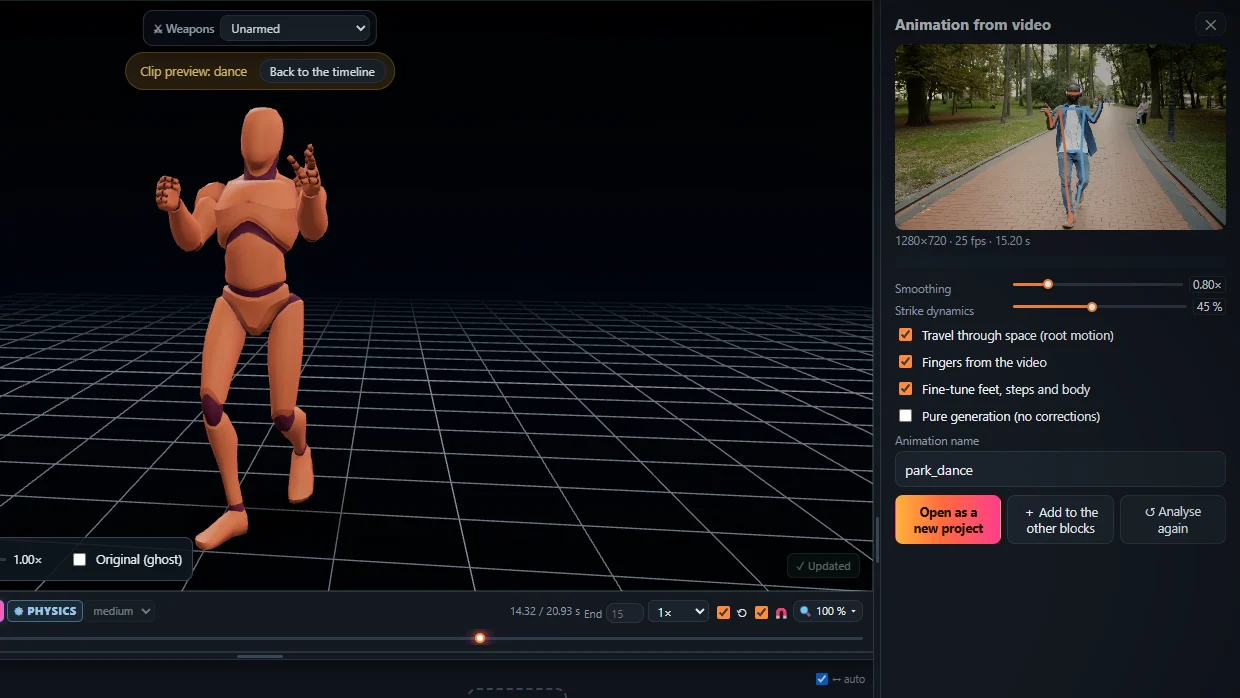
- Drop it on Animation from video (MP4, WEBM or MOV) and press Analyse video. The video is not uploaded – it is read in your browser.
- Add it to the timeline, fix what you like with sliders, posing or Magic Heal.
- Export FBX, GLB or BVH for Unity, Unreal Engine or Blender.
Or use the phone live
Live camera in the Studio shows a QR code: scan it with the phone, allow the camera, and the 3D character copies you live – no app to install. Press Record: when you stop, the take is processed as a whole video (more exact than the live preview) and added to the timeline.
Frequently asked questions
Can I do motion capture with just my phone?
Yes. Film the move with the phone camera, then drop the video into KinemIQ Studio on a computer - AI motion capture turns it into a 3D animation. With Live camera the phone can also stream to the Studio while the character copies you, with nothing to install.
Which phone camera settings are best?
The normal camera app is fine: 30 or 60 frames per second, the highest resolution you have, and plenty of light so that fast moves are not blurred.
Portrait or landscape?
Either works as long as the whole body - head to feet - stays in the frame for the whole move. Landscape leaves more room for steps and turns.
Can other people be in the video?
Film one person. KinemIQ follows the main person and leaves bystanders out, but a clean frame gives the cleanest motion.
More with KinemIQ: Video to 3D animation · Video to motion · Free AI mocap from video · Video to FBX · Video to BVH · Martial arts animation · Ragdoll animation · FBX animation for Unity · Mocap for Unreal Engine · Mocap to Blender · Text to animation · 5-minute guide · All guides and answers